Showing posts with label Tutorials. Show all posts

Friday, 19 June 2015

Make Connectify work with Avast

Recently I updated Connectify to version 3.1 and it just stopped working.

After sometime of trial and error I found out that Avast Antivirus(I have Avast Internet Security) was blocking some essential ports which Avast uses.

Basically what needs to be done are two things:

  1. Enable the Internet Sharing mode in the Firewall settings


 2.Enable some Firewall packet rules for the application ConnectifyNetServices.exe 


Thursday, 25 July 2013

Hướng dẫn xem, gỡ bỏ, add key Microsoft Office 2010,2013 nhanh gọn và tiện lợi


Chào các bạn
Đọc tiêu đề chắc nhiều bạn thắc mắc tại sao đã Add key rồi còn gỡ ra làm gì
Xin thưa với các bạn là bản Office 2013 nó hơi khác với những phiên bản khác ở chỗ có cả Preview lần bản thường
- Bản preview có key trial riêng mà bản thường cũng có nữa. Bạn đã add key trial preview rồi thì khi cài bản thường vào add key trial thường nó ko chịu nhận
- Trường hợp thứ 2 là trước khi có key tốt bạn đã crack bằng 1 số cách nào đó rồi. Tự động nó add 1 cái key blah blah vào... Đến lúc có key xịn cũng ko biết làm thế nào để rửa tội mà dùng cái key xịn đó
Cách dưới đây áp dụng được cho cả Office 2010, bạn chỉ cần thay ký tự Office15 trong các dòng lệnh thành Office14 là được !!!


Giờ thì mình sẽ hướng dẫn các bạn xoá hết những key đã từng add vào Office bằng tay


B1: Xem danh sách những key đã được Add vào Office

Run CMD as Administrator, chạy dòng lệnh này
cscript "%ProgramFiles%\Microsoft Office\Office15\ospp.vbs" /dstatus  
Nếu bạn cài Office vào ổ nào khác với ổ cài Win thì phải đổi lại
cscript "D:\Program Files\Microsoft Office\Office15\ospp.vbs" /dstatus  
Rồi ấn Enter. Ngồi đợi 1 chút nó sẽ hiện ra cái bảng thông báo dạng thế này
---------------------------------------SKU ID: 1b686580-9fb1-4b88-bfba-eae7c0da31ad
LICENSE NAME: Office 15, OfficeProPlusR_Grace edition
LICENSE DESCRIPTION: Office 15, RETAIL(Grace) channel
LICENSE STATUS:  ---OOB_GRACE---ERROR CODE: 0x4004F00C
ERROR DESCRIPTION: The Software Licensing Service reported that the application
is running within the valid grace period.REMAINING GRACE: 4 days  (6817 minute(s) before expiring)Last 5 characters of installed product key: XXXXX---------------------------------------SKU ID: 41499869-4103-4d3b-9da6-d07df41b6e39
LICENSE NAME: Office 15, OfficeProPlusMSDNR_Retail edition
LICENSE DESCRIPTION: Office 15, RETAIL channel
LICENSE STATUS:  ---LICENSED---Last 5 characters of installed product key: XXXXX---------------------------------------SKU ID: b322da9c-a2e2-4058-9e4e-f59a6970bd69
LICENSE NAME: Office 15, OfficeProPlusVL_KMS_Client edition
LICENSE DESCRIPTION: Office 15, VOLUME_KMSCLIENT channel
LICENSE STATUS:  ---LICENSED---ERROR CODE: 0x4004F040 (for information purposes only as the status is licensed)
ERROR DESCRIPTION: The Software Licensing Service reported that the product was
activated but the owner should verify the Product Use Rights.REMAINING GRACE: 175 days  (253242 minute(s) before expiring)Last 5 characters of installed product key: XXXXX
Activation Type Configuration: ALL
        DNS auto-discovery: KMS name not available
        KMS machine registry override defined: 127.0.0.3:1688
        Activation Interval: 120 minutes
        Renewal Interval: 10080 minutes
        KMS host caching: Enabled---------------------------------------
---------------------------------------
---Exiting-----------------------------  
Bước 2: Xoá, gỡ bỏ 1 key bẩt kỳ
Chọn và xoá key mà bạn ko mong muốn. Rảnh thì xoá hết đi mà add lại cho vui
Bạn chạy dòng lệnh
cscript "%ProgramFiles%\Microsoft Office\Office15\ospp.vbs" /unpkey:XXXXX 
Nếu bạn ko cài vào ổ C thì xem lại bước 1 để làm.
Lệnh này giúp bạn xoá cái key có đuôi là 5 ký tự XXXXX trong cái bảng những key đã được add vào máy của bạn
Mỗi lần xoá đc 1 key. N lần thì đc N key :v

Bước 3: Thêm key mới vào
Sau khi xoá hết. Để nhanh gọn thì có thể dùng lênh này để Add key mới vào. Khỏi phải vào Admin CP change key làm j cho nó mệt
cscript "%ProgramFiles%\Microsoft Office\Office15\ospp.vbs" /inpkey:XXXXX-XXXXX-XXXXX-XXXXX-XXXXX  


Mình nghĩ cái lệnh cuối cùng khỏi giải thích. Nếu đọc từ đầu đến cuối chắc bạn cũng hiểu rồi
Đặc biệt cách này khắc phục được lỗi "Microsoft office cannot verify the license for this product. you should repair the office program by using control panel" mà nhiều người hỏi chẳng ai chịu trả lời trên 4rum
Lưu ý là nếu bạn cài Office vào ổ khác thì phải đổi ProgramFiles thành Program Files mới đúng nhé

- Sau khi bạn gỡ hết key ra thì coi như mới hoàn toàn. Kiếm cái key trial khác cài vào là dùng đc tiếp
- Dùng cách này bản Retail cũng có thể add key volum để kích hoạt bằng đt đc thì phải. Mình mới làm thử, lúc dùng cái Change key của Office thì nó báo ko đc mà mình add key bằng command thì lại đc 

Thursday, 2 May 2013

Kaspersky Internet Security


Kasperksy Internet Security 2012
https://docs.google.com/file/d/0B4vg7Usn7Pa5VUswYm9YaVVHTzQ/edit?usp=sharing
https://mega.co.nz/#!pM43XZzZ!A-eHcWIHIde05lvjMaW0CBbXlQtlZYhvnLS-5wOsUs0

Thursday, 25 April 2013

Norton Internet Security !


https://mega.co.nz/#!wcZEHKyQ!Qz4W3gQvlXlcUNeVT2B423Q5R-1A8L0_Kce_8WEJMo0
https://docs.google.com/file/d/0B4vg7Usn7Pa5akFQRk9BZWtXbEE/edit?usp=sharing

Download bản dùng thử 180 ngày về, cài đặt sau đó đăng ký email !
Sau đó vào https://manage.norton.com
Đăng nhập bằng email vừa đăng ký.
Vào My Account -

Monday, 18 June 2012

Free live sport stream on your PC

You need some tools for watching live sport on PC:

1. Sopcast
2. Readon TV Movie Radio Player
3. Stream Torrent
...
(have more some app, but these three ones are enough) 
now where are we got chanel, here:

http://www.wiziwig.tv/index.php?part=sports
http://www.lshunter.tv/
http://livetv.ru/en/
http://www.livefootballol.com/
http://livesport.ws/
http://www.asianbookie.com/
http://www.freefootball.eu/

If you use Readon TV Movie Radio Player, searching some chanel from China, or euro sport chanel.

Wednesday, 28 March 2012

Hướng dẫn cách chống giật và dừng hình khi dùng sopcast để xem bóng đá!

Hướng dẫn cách chống giật và dừng hình khi dùng sopcast để xem bóng đá !

    Vào ngày chủ nhật hàng tuần do K+ chúng ta thường chọn giải pháp xem qua sopcast, tuy nhiên do 1 điều hiển nhiên đó là ở các trận đấu đáng chú ý nhiều người xem dẫn tới lượng truy cập sử dụng sopcast cho 1 đường link là rất cao, điều đó dẫn tới 1 số trường hợp chúng ta sẽ xem ko được tốt và xẩy ra các hiện tượng như giật hình,dừng hình,chỉ có hình hoặc chỉ có tiếng, sau đây em xin hướng dẫn các cụ 1 giải pháp đó là dùng phần mềm VLC để hỗ trợ khi xem sopcast để chống lại các hiện tượng khó chịu trên.
    Hãy đọc kỹ hướng dẫn trước khi hỏi
    Chú ý: Chỉ cần dùng chương trình VLC này nếu như Sopcast bị dừng hình, màn hình không có hình chỉ có tiếng hoặc bị giật, còn nếu không thì không cần thiết sử dụng.
    Để sử dụng chương trình này phục vụ cho việc xem các chương trình bóng đá trên Internet thì các cụ mợ có thể làm theo những bước sau:

    Bước 1, Download chương trình VLC Media Player (hoàn toàn miễn phí, google là ra link down)
 
    Bước 2, Hãy làm theo hình hướng dẫn:
    Tip: Hãy nhớ bật cả 2 chương trình lên rồi tắt tiếng của sopcast để tránh ồn. Nhớ là không được tắt Sopcast vì nó cũng sẽ tắt luôn chương trình của VLC.


Bước 3
Media----Open Network Streams.


Bước 4
Các bạn chỉ việc copy link y hệt như vậy là có thể xem được.


Chú ý: Sẽ có 3 link để các cụ mợ dùng và có thể thay đổi nếu như có link nào đó không hoạt động. Hãy dùng những link này để copy vài phần đánh dấu ở phía trên.

http://127.0.0.1:8902
http://127.0.0.1:8912
http://127.0.0.1:8922

Nếu có vấn đề gì thắc mắc các cụ các mợ có thể hỏi tại topic này. Tuy nhiên, trước khi hỏi hãy làm theo hướng dẫn nhé.
Mong rằng các cụ các mợ theo dõi những trận đấu hấp dẫn qua Internet được tốt hơn.
(st) 
tham khảo thêm ở  đây
http://vozforums.com/showthread.php?p=54244276

Sunday, 2 January 2011

Hiren's BootCD From USB Flash Drive (USB Pen Drive)

Hiren's BootCD From USB Flash Drive (USB Pen Drive)

Step 1

Connect USB Pen Drive (512MB or more)
Step 2
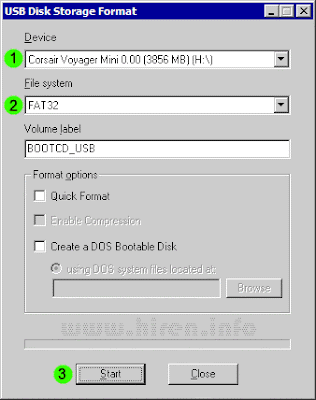
Download and Run USB Disk Storage Format USBFormat.zip (34KB)Step 3
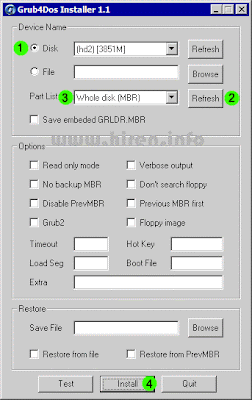
Download grubinst_gui grub4dos.zip (188KB) and Run as Administrator
Step 4
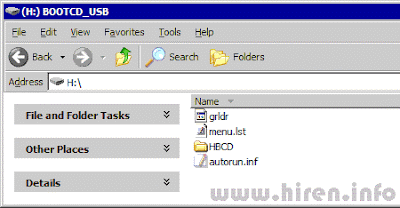
Copy grldr and menu.lst (from grub4dos folder) to the usb drive
Step 5
Insert the BootCD (9.7 or newer) in the CD Drive and Copy everything from CD to USB Flash Drive
Step 6
Test Your USB Drive
Grubinst_gui & USB Disk Storage Format


Tuesday, 28 December 2010

[TUT] Install Windows 7/Vista From USB Drive

This guide works 100% for Vista & Windows 7 unlike most of the guides out there. I have seen many sites/blogs that have “Install Vista from USB guide” but either with incomplete steps or not working guide. I have also seen some guides that don’t’ use proper commands in this guide. After spending many hours I have come up with this 100% working guide.
I just did this method on one of my friends machine and installed the new Windows 7 BETA. The main advantage is that by using USB drive you will be able to install Windows 7/Vista in just 15 minutes. You can also use this bootable USB drive on friend’s computer who doesn’t have a DVD optical drive.
The method is very simple and you can use without any hassles. Needless to say that your motherboard should support USB Boot feature to make use of the bootable USB drive.
Requirements:
*USB Flash Drive (Minimum 4GB)
*Windows 7 or Vista installation files.
Follow the below steps to create bootable Windows 7/Vista USB drive using which you can install Windows 7/Vista easily.
1. Plug-in your USB flash drive to USB port and move all the contents from USB drive to a safe location on your system.
2. Open Command Prompt with admin rights. Use any of the below methods to open Command Prompt with admin rights.
*Type cmd in Start menu search box and hit Ctrl+ Shift+ Enter.
Or
*Go to Start menu > All programs > Accessories, right click on Command Prompt and select Run as administrator.
3. You need to know about the USB drive a little bit. Type in the following commands in the command prompt:
First type DISKPART and hit enter to see the below message.

Next type LIST DISK command and note down the Disk number (ex: Disk 1) of your USB flash drive. In the below screenshot my Flash Drive Disk no is Disk 1.
4. Next type all the below commands one by one. Here I assume that your disk drive no is “Disk 1”.If you have Disk 2 as your USB flash drive then use Disk 2.Refer the above step to confirm it.
So below are the commands you need to type and execute one by one:
SELECT DISK 1
CLEAN
CREATE PARTITION PRIMARY
SELECT PARTITION 1
ACTIVE
FORMAT FS=NTFS QUICK
(Format process may take few seconds)
ASSIGN
EXIT
Don’t close the command prompt as we need to execute one more command at the next step. Just minimize it.

5. Next insert your Windows7/Vista DVD into the optical drive and check the drive letter of the DVD drive. In this guide I will assume that your DVD drive letter is “D” and USB drive letter is “H” (open my computer to know about it).
6. Maximize the minimized Command Prompt in the 4th step.Type the following command now:
D: CD BOOT and hit enter.Where “D” is your DVD drive letter.
CD BOOT and hit enter to see the below message.
7. Type another command given below to update the USB drive with BOOTMGR compatible code.
BOOTSECT.EXE /NT60 H:

Where “H” is your USB drive letter. Once you enter the above command you will see the below message.
8. Copy your Windows 7/Vista DVD contents to the USB flash drive.
9. Your USB drive is ready to boot and install Windows 7/Vista. Only thing you need to change the boot priority at the BIOS to USB from the HDD or CD ROM drive. I won’t explain it as it’s just the matter the changing the boot priority or enabling the USB boot option in the BIOS.
Note: If you are not able to boot after following this guide means you haven’t set the BIOS priority to USB. If you got any problem in following this guide feel free to ask questions by leaving comment.

Thursday, 14 January 2010

[TUT] X264 Encoding

* X264 Encoding Tutorial from HD Source
o 1. Demux (extract video, audio)
Purpose: extract video and audio separately then we can work out on each at ease.
Software: MKVtoolnix +MkvetractGUI
Procedure:
+ Start MkvextractGUI
+ At Input, browse for the source file
+ Wait for loading, and then at the content box, check all of the content
+ Click Extract to start
+ After about 5’ , done!

o 2. Encode audio
Software: Foobar2000 + foo_ac3.dll + NeroAacenc.exe
Procedure:
+ Copy foo_ac3.dll to your component directory of Foobar2000
+ Start Foobar2000
+ Add your source audio file that you has just extracted.
+ Right click on it and looking for Convert Convert to the same folder
+ A dialog appeared asking for the encoding option
+ In the dropdown menu, select MP4(Nero), then click … to select the bitrate
+ Select Mode: ABR and quality of 192kbps or higher if you need better quality then OK 2 times
+ If the transcode warning showed up, just click yes
+ If it asks for the neroaacenc.exe, browse to that file on your hard drive then click ok
+ The transcoding takes about 5-10 minutes depend on your system and the length of you audio file

o 3. Encode Video
Software: meGui + Avisynth
Procedure:
+ Start meGUI
+ Go to Tools  Avisynth script creator
+ In the new window, browse to your video file that you extracted off from Task 1
+ A window preview of your video will appeared then.
+ If you see a black border, click on Autocrop to crop it, this will help saving the bitrate for the content
+ In the resize option, it depend on your needs, here I do m-HD then I resize to 720x480 (for 16/9 AR of source file)
# The resize option that from hdtv-fan's x264, mkv help thread for anamorphic m-HD
1280x720 => 720x480
1280x528 => 720x352
1280x544 => 720x(~)362
1280x688 => 720x(~)458
+ Make sure you check “On Save close and load to be encoded”
+ Save avs file and it will be automatically load on in your Video input
+ Select Codec x264, file format mkv
+ Select the profile, here I recommend HQ-Slower for better quality still it takes a bit long time to encode.
+ Go to config, in the tab Zones, type “--sar 40:33” in Custom command line Options. This option is for anamorphic encoding
+ Next, go to Tools  Bitrate calculator to get the extract bitrate so that the file size is as your need.
+ At Audio section, select the audio file that you already encoded in taks 2 (format of mp4)
+ In total size, input your desire file size of your movie after encoding, then the result bitrate will be calculated and showed in the below section.
+ Click apply to finish Bitrate calculator
+ Click enqueue to get your file ready to be encoded.
+ Now you almost get to the point but don’t start if you want to do a batch encode. Follow all the same instructions before to your another video files and click enqueue when you done with each
+ When you finish with configuration all your files, now click on tab Queue to start the job
+ Click start, if it asks something for a worker, type anything and Ok
+ Now, go to sleep or go watching movie while your PC does its jobs.
+ The average time is about 5-6 hours of 1 hour HD video if you have a fast CPU. Maybe damn slower if your CPU suck :P. Be patient, then you can have the best quality.

o 4. Mux
Purpose: to multiplex your encoded audio and video and even subtitle to only 1 file ( container)
Tools: MKVtoolnix
Procedure:
+ Start Mkvmerge GUI
+ Add the encoded video, audio and subtitles of your movies
+ In the track box, edit information if you want or you can leave it as
+ At Output file name, put a name for your new movie file. Be sure that the name not the same with the encoded video file , otherwise it will overwrite while you still need that file to multiplex. Such a disaster!!!

mkvtoolnix

http://www.bunkus.org/videotools/mkvtoolnix/downloads.html#windows

Foobar2000 + foo_ac3.dll + NeroAacenc.exe

http://www.foobar2000.org/download.html

http://kode54.foobar2000.org/foo_ac3.zip

http://www.nero.com/eng/down-ndaudio.php

meGui

http://www.sf.net/projects/megui

MkvExtractGUI

http://www.videohelp.com/tools/MKVExtractGUI

Avisynth

http://sourceforge.net/projects/avisynth2/files/

K-Lite Codec Pack 64-bit
http://www.codecguide.com/klcp_64bit.htm